3.6. IP Access Control tab
IP Access Control is a security feature of FPT Cloud Monitoring that lets you set up and manage a list of external IP addresses allowed to access each internal FPT Cloud Monitoring component in your workspace.
This feature actively blocks access from outside FPT Cloud that is not on the whitelist, helping you strengthen access security, prevent unauthorized access, and meet security compliance requirements.
Access the feature
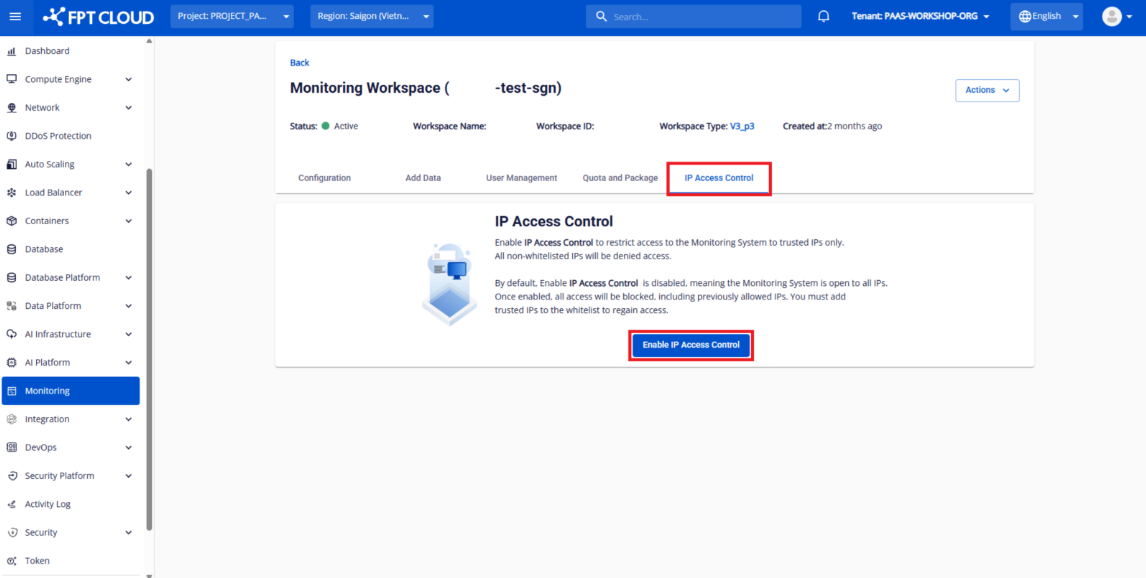
Step 1. In FPT Cloud Console Portal, open the FPT Cloud Monitoring workspace you want to configure and select the IP Access Control tab.
Step 2. If the feature is not yet enabled, you will see an Enable IP Access Control button. Click it to enable the feature.
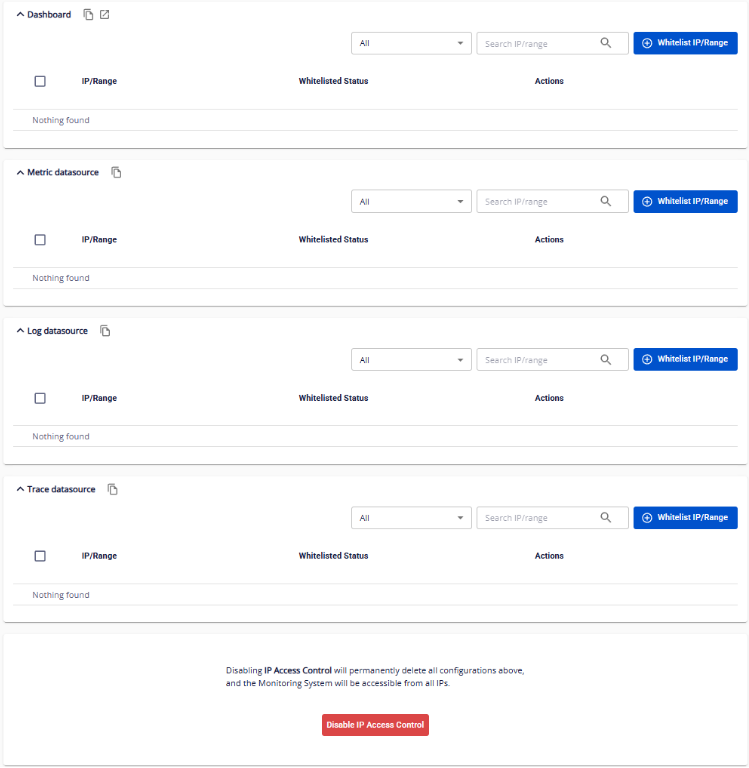
Step 3. If the feature is already enabled, you will see 4 whitelisted IP tables corresponding to the 4 FPT Cloud Monitoring system components, along with a Disable IP Access Control button. Click it to disable the feature.
- When IP Access Control is disabled, all IP addresses can access the FPT Cloud Monitoring workspace components.
- When enabled, the system immediately blocks all access from outside FPT Cloud by default (monitoring agents within FPT Cloud continue to work normally). External IPs must be whitelisted to access FPT Cloud Monitoring endpoints.
Manage the whitelisted IP list
The IP Access Control feature manages whitelisted IPs by FPT Cloud Monitoring system component for each workspace, covering:
- Grafana dashboard URL
- Metric datasource URL
- Log datasource URL
- Trace datasource URL
Each component has its own independent IP whitelist table.
IP/CIDR statuses
| Status | Description |
|---|---|
| Whitelisting | The system is processing the whitelist request for the IP/CIDR. |
| Whitelisted | The IP/CIDR has been whitelisted successfully and has access. |
| Whitelist Failed | The whitelist operation failed. The IP/CIDR does not yet have access. Click Retry to try again. |
| Blacklisting | The system is revoking access for the IP/CIDR. |
| Blacklist Failed | The blacklist operation failed. The IP/CIDR still has access. Click Retry to try again. |