DAST API integration
View the DAST API Integration list
- The DAST API Integration feature lets users manage DAST integration and security scanning for the organization/team's APIs. Users can:
View the Authentication Profile list
Create and edit Authentication Profiles
Verify domain ownership
Manage API Sources (Add / Enable / Disable / Delete)
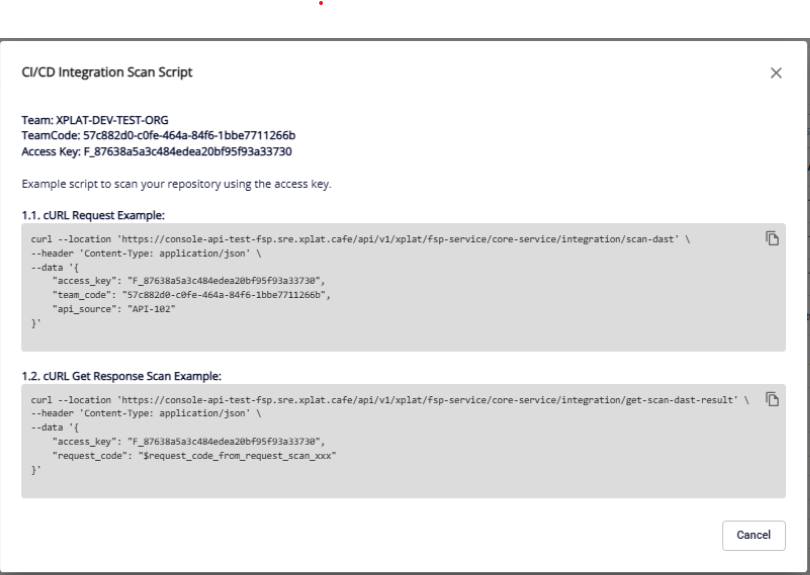
Retrieve the CI/CD Scan Script for pipeline integration
The feature keeps API scanning controlled, secure, and easy to plug into the CI/CD process.
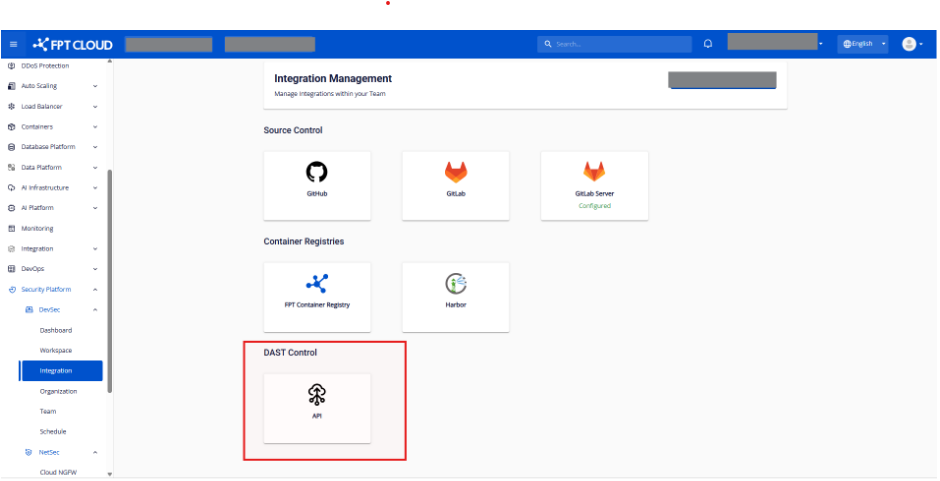
Step 1. From the menu, choose Integration to open the Integration Management screen. Then select the API card (DAST Control group) for the Organization/team.
Step 2. The system displays the DAST API Integration List screen.
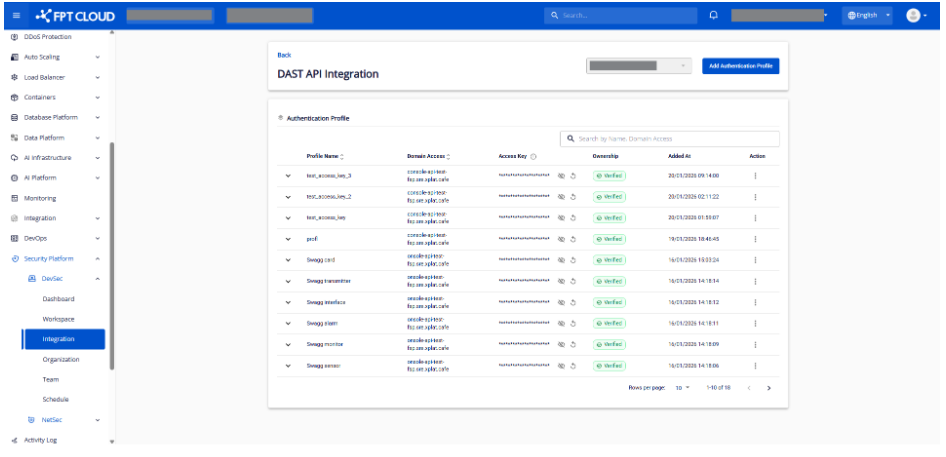
Authentication Profile fields:
Profile Name: name of the Authentication Profile
Domain Access: the configured domain
Access Key: key used for CI/CD (can be hidden/shown or reset)
Ownership: domain verification status
Added At: when the profile was created
Action: available actions, including Edit and Add API Source
The system supports search by Profile Name and Domain Access (case-insensitive).
Create an Authentication Profile
-
The Authentication Profile holds the credentials. An API Source is the system you want to scan. You must create a login profile first so the system knows how to access that API.
-
The Authentication Profile lets DAST API use authentication data (Query Parameters, Headers, Token, Cookie, etc.) when sending requests to your API, ensuring the scan runs accurately and completely.
Step 1. From the DAST API Integration list, click Add Authentication Profile.
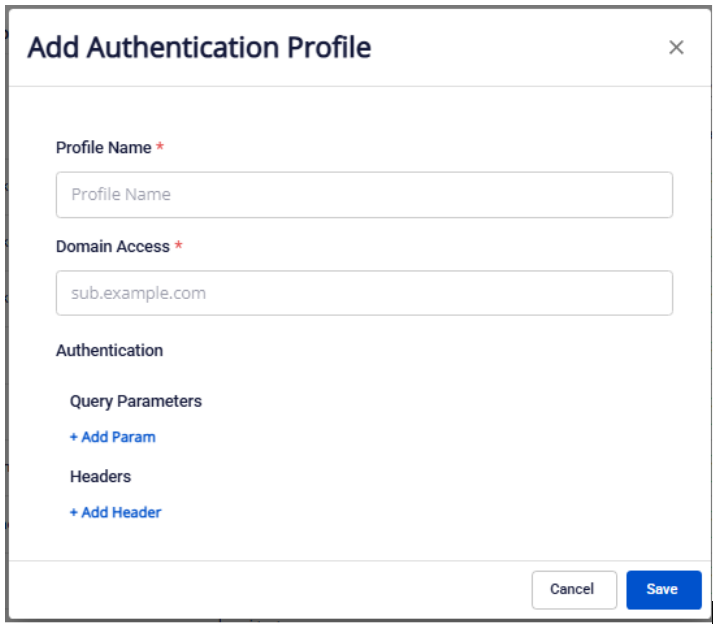
Step 2. The Add Authentication Profile popup appears. Enter the profile information.
-
Profile Name (required): enter a name for the Authentication Profile so it is easy to identify.
-
Domain Access (required): enter the domain that the system is allowed to send requests to.
-
Authentication configuration: the Authentication Profile supports two main configuration groups:
Query Parameters (optional)
Used to pass authentication data through the URL (after the ?).
Click + Add Parameter to add a query parameter.
Rules:
Up to 5 query parameters.
Each parameter has a Key and a Value.
Keys must be unique.
Headers (optional)
Click Add Header to add authentication via Header. The system supports the following header types:
Bearer Token
Only one Bearer Token may be added.
Header Key is fixed as: Authorization (not editable).
Token Value: required, up to 2048 characters.
Basic Auth
Only one Basic Auth may be added.
Header Key is fixed as: Authorization.
Enter: Username and Password (masked, with a view icon).
Cookie
Only one Cookie may be added.
Default Key: Cookie.
Enter: Value.
Custom Header
Up to 5 Custom Headers may be added.
Each header has a Key and a Value.
Keys must be unique.
Notes:
When Bearer Token or Basic Auth has been added, the other choice is disabled.
When the maximum count for a header type is reached, that option is disabled.
After saving:
Domain not previously verified → return to the DAST API Integration List screen; the created profile is shown with a Verify Now button in the Ownership column.
Domain already verified → return to the DAST API Integration List screen; the created profile is shown with the Verified status in the Ownership column.
Edit an Authentication Profile
Step 1. From the DAST API Integration list, click Edit on the profile you want to update.
Step 2. The Edit Authentication Profile popup appears. Update the profile information.
- Same as creating an Authentication Profile, except Domain Access cannot be modified.
Verify domain ownership
- The Verify Domain Ownership feature lets users verify ownership of the root domain declared in the Authentication Profile. Verification ensures that the scanned domain is actually under the user's control and activates the related DAST API scan capabilities.
Step 1. If the profile's domain has never been verified, click Verify Now in the Ownership column.
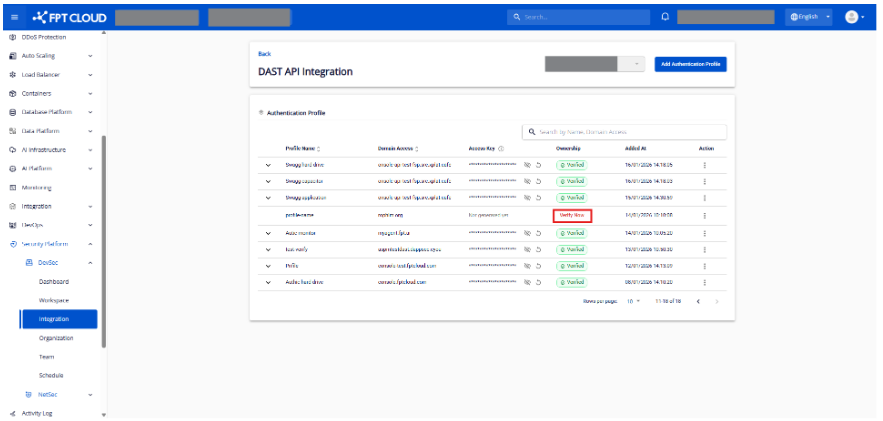
Step 2. The Verify Domain popup appears. Check the Domain information.
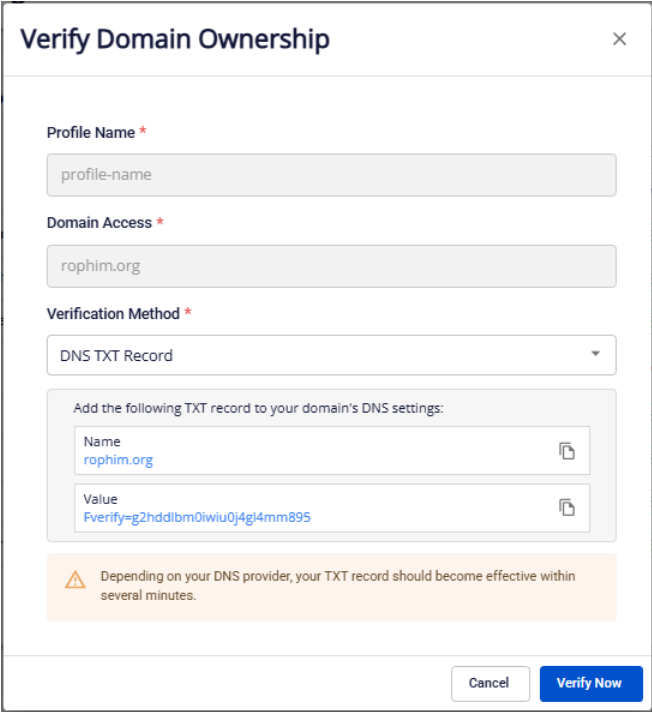
- In the Verify Domain Ownership drawer, you will see the following fields (read-only):
Domain Access: the domain declared in the Profile Details.
Domain Verification: the root domain automatically derived from the Domain Access.
Choose a Verification Method. Pick one of the following two methods:
Method 1: DNS TXT Record (default)
Name: TXT record name (related to the root domain).
Value: verification token generated automatically by the system.
User actions:
Open the DNS management system for the domain → create a TXT record with the supplied Name and Value → save the change and wait for DNS to propagate.
Method 2: HTML File Upload
File Name: name of the .txt file generated automatically.
Content: contents of the verification file.
Upload Location: the upload path on the web server.
User actions:
Create a .txt file with the supplied File Name and Content → upload this file to the web server's root directory at the specified Upload Location.
-
After configuring DNS or uploading the file, click Verify Now.
-
The system starts the domain-ownership verification process.
If verification succeeds:
A success message is shown.
The user is automatically returned to the DAST API Integration List screen.
Ownership status = Verified.
All Authentication Profiles sharing the same root domain are updated to Verified.
An Access Key is generated.
If verification fails:
A failure message is shown.
The user stays on the popup to review and try again.
View the API Source list
Step 1. From the DAST API Integration list, click the Expand icon on an Authentication Profile.
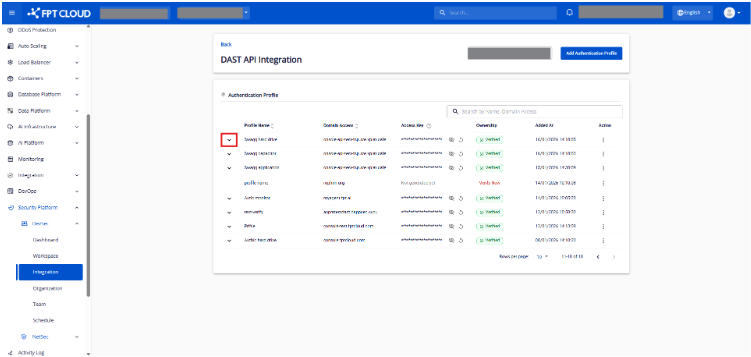
Step 2. Review the API Source table.
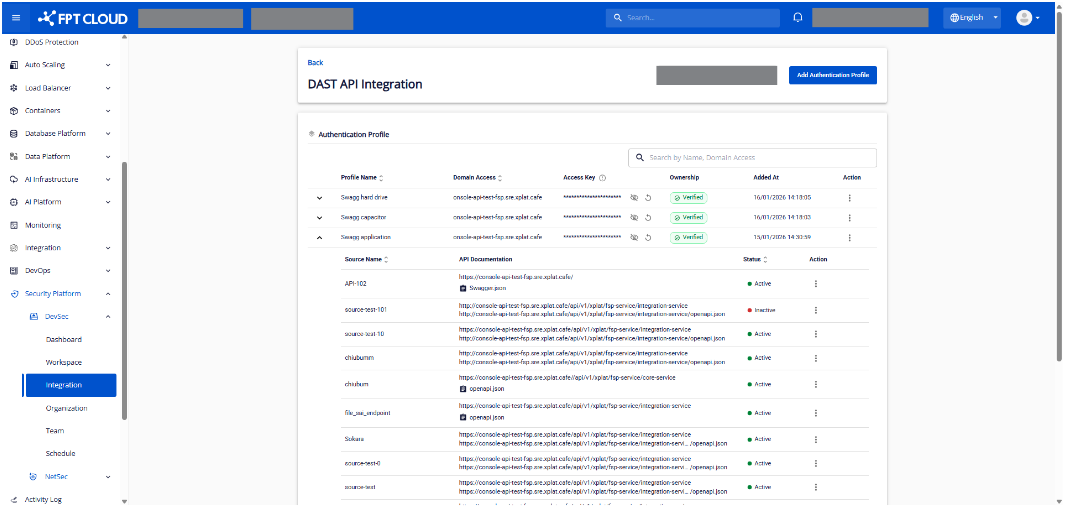
API Source fields:
Source Name: name of the API Source.
API Document: shows the Endpoint and the Document URL or uploaded file.
Status: status of the API Source — Active or Inactive.
Action: available actions — Disable, Enable, Delete, and View CI/CD scan script.
Create an API Source
-
This feature lets users declare an API documentation source so the system can run DAST API scans.
-
Only Authentication Profiles whose domain has been verified can create an API Source.
Step 1. From the DAST API Integration list, on a row where the Authentication Profile has verified domain ownership, click Add API Source.
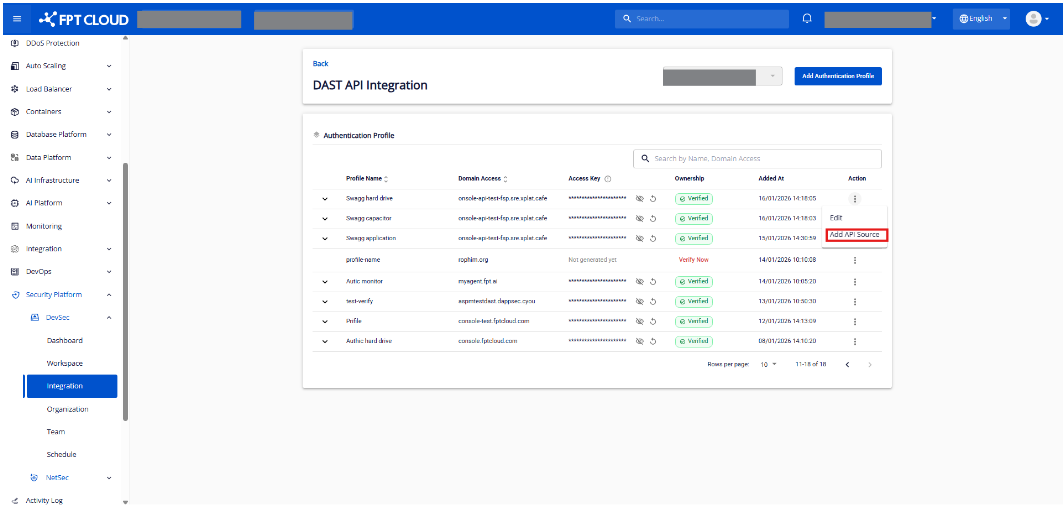
Step 2. The Create API Source popup appears.
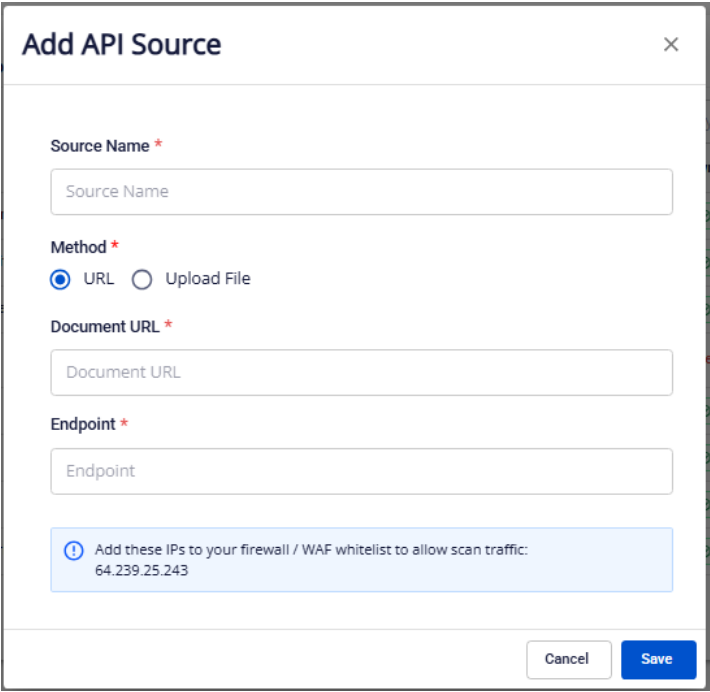
- Enter the API Source information:
Source Name: enter a name for the API Source.
Method: choose how to declare the API Document — URL (default) or upload file.
Document URL: enter the full path to the Swagger file. Shown when Method = URL.
Upload File: upload one JSON Swagger file. Shown when Method = Upload file.
Endpoint: enter the actual endpoint the client calls.
Parameter: after the Document URL or uploaded file is parsed successfully, the system displays the required parameters from Swagger. Parameter types include: Header, Path, Query.
Whitelist IP: the system shows the IP list that must be whitelisted to allow scan traffic. Add these IPs to your system's Firewall / WAF.
Step 3. Save the API Source.
-
The system validates and saves the API Source.
-
On successful save, the system returns to the list and shows the new API Source.
-
You can also Enable / Disable / Delete an API Source.
-
The system supports viewing the CI/CD Integration Scan Script by clicking View CI/CD Scan Script on the row of the API Source you want. The script is displayed: