Cluster Autoscale
The Cluster Autoscale feature of Managed FKE automatically scales additional worker nodes within a worker pool when applications on that pool do not receive enough resources (CPU, Memory) from the existing worker nodes. Pending pods caused by insufficient node resources are served by the newly scaled-up worker nodes. Cluster Autoscale also removes nodes that under-utilize their resources (default threshold is 50% utilization). The number of worker nodes in a worker pool only scales within the min-max range defined by the user in the FPT Cloud Portal.
Enable Cluster Autoscale
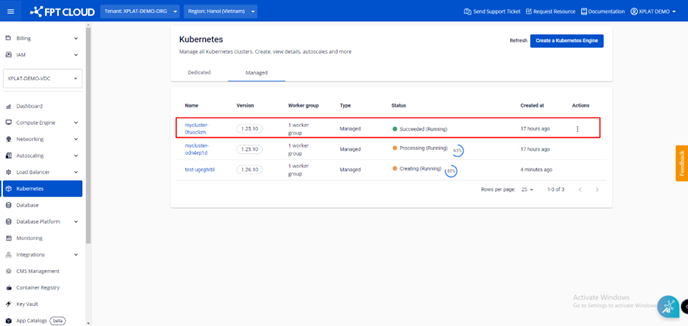
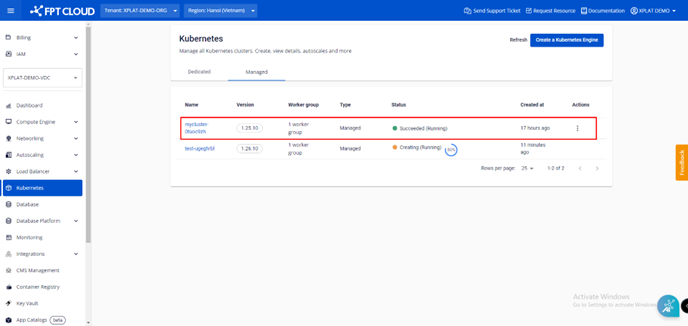
Step 1: From the menu, select Kubernetes. The Kubernetes Management page opens. Select the Cluster where you want to enable Cluster Autoscale.
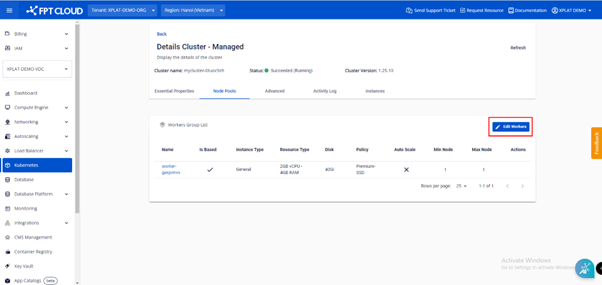
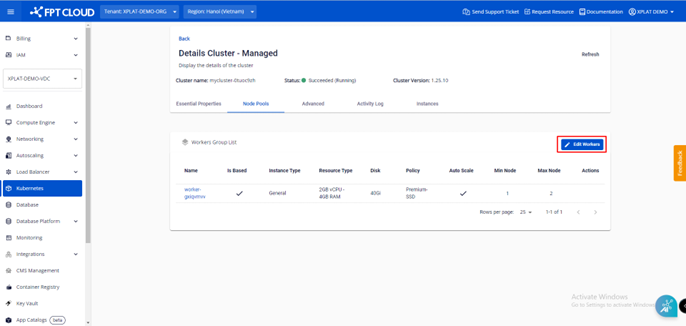
Step 2: Select Node Pools > Edit Workers.
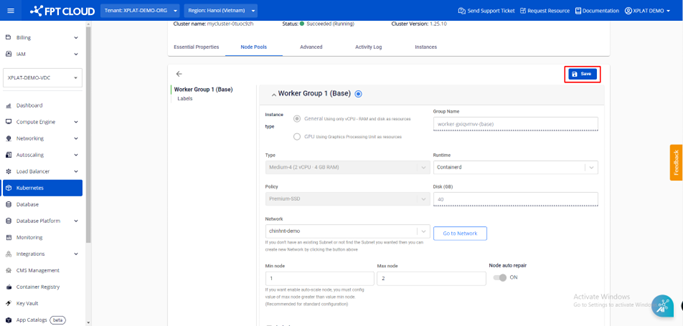
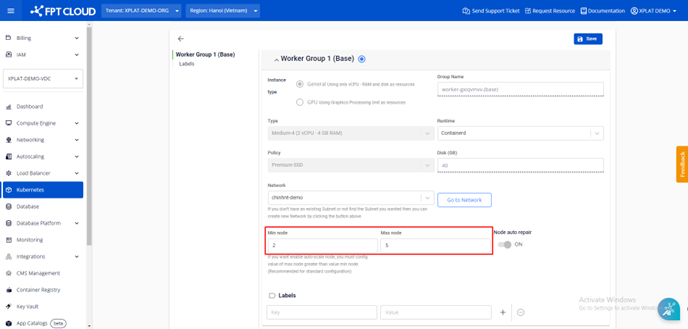
Step 3: Set the worker min-max values according to your sizing requirements.
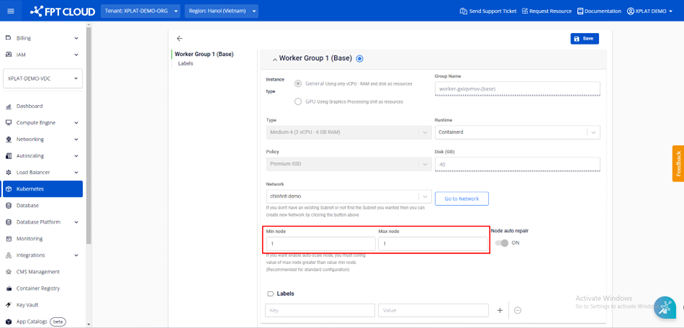
When worker max is greater than worker min, Cluster Autoscale is enabled automatically.
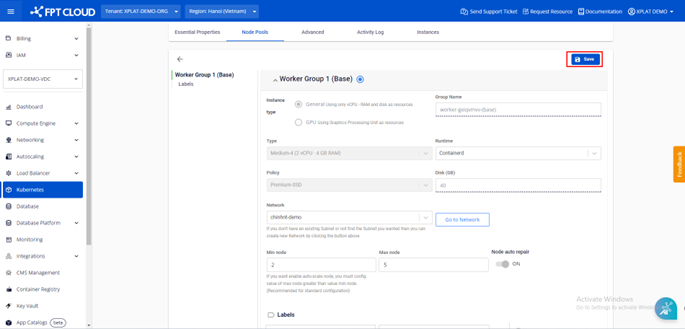
Step 4: Review the information, then click Save to enable Cluster Autoscale.
Disable Cluster Autoscale
Step 1: From the menu, select Kubernetes. The Kubernetes Management page opens. Select the Cluster where you want to disable Cluster Autoscale.
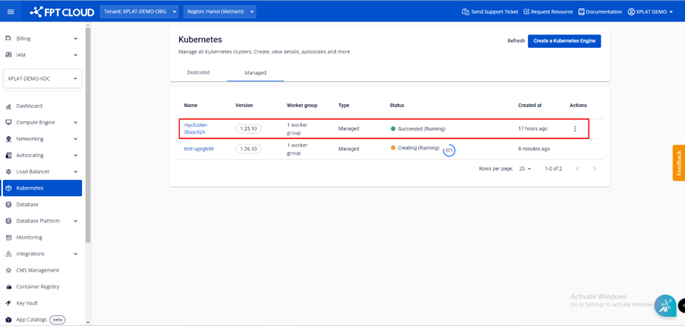
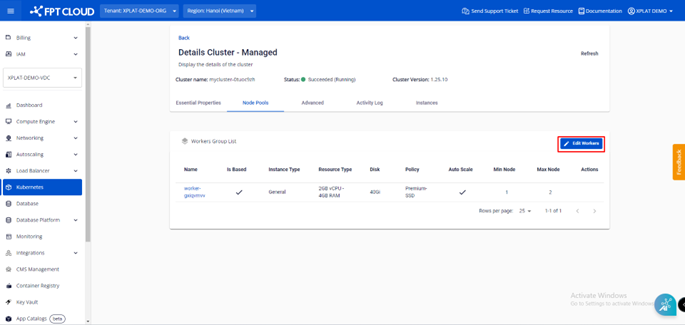
Step 2: Select Node Pools > Edit Workers.
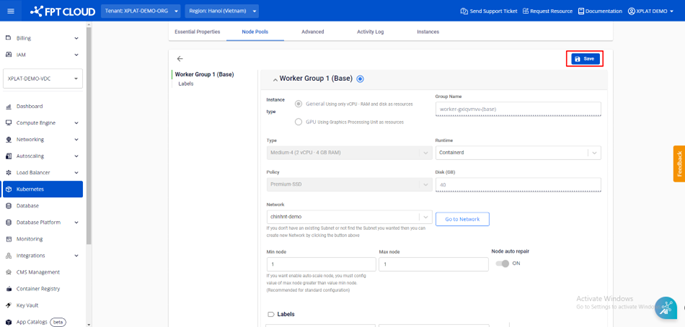
Step 3: Set worker min equal to worker max.
When worker min and worker max in a worker pool are equal, Cluster Autoscale is disabled automatically.
Step 4: Review the information and click Save.
Change the Cluster Autoscale configuration
Step 1: From the menu, select Kubernetes. The Kubernetes Management page opens. Select the Cluster whose Cluster Autoscale configuration you want to change.
Step 2: Select Node Pools > Edit Workers.
Step 3: Adjust the worker count according to your needs.
Step 4: Review the information and click Save.